VoiceOver macOS

Intro
VoiceOver is a built-in screen reader installed on all Apple devices. Follow this guide to learn how to use it for accessibility testing.
"Shut Up" Key
| Shortcut | Action |
|---|---|
Control |
Stop VoiceOver talking. |
Turning On/Off
There are several ways of starting VoiceOver on macOS:
From VoiceOver Settings
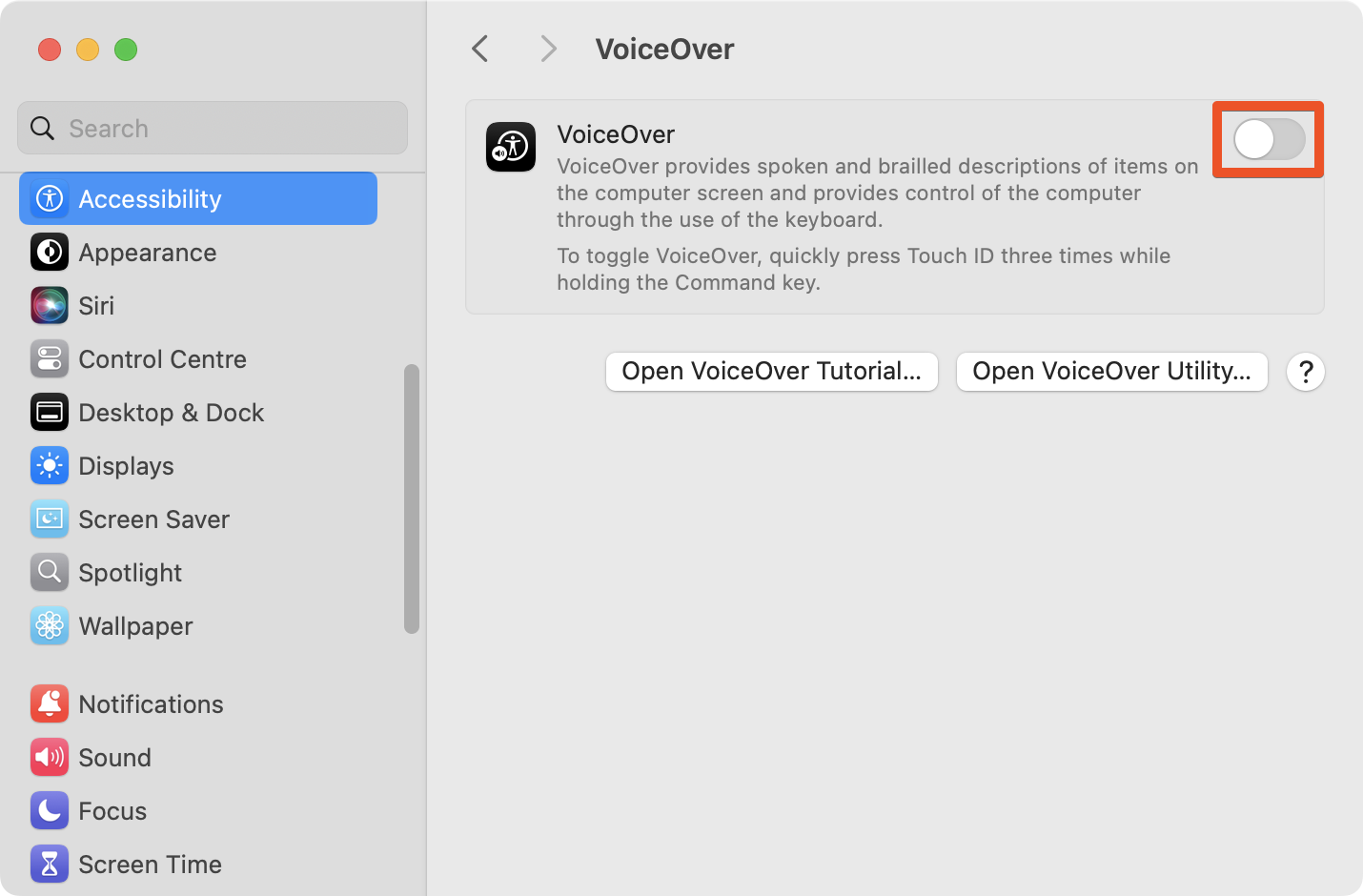
Activate the switch in System Settings > Accessibility > VoiceOver:
With VoiceOver Shortcut
| Shortcut | Action |
|---|---|
Command + F5 |
VoiceOver on/off with a keyboard shortcut. |
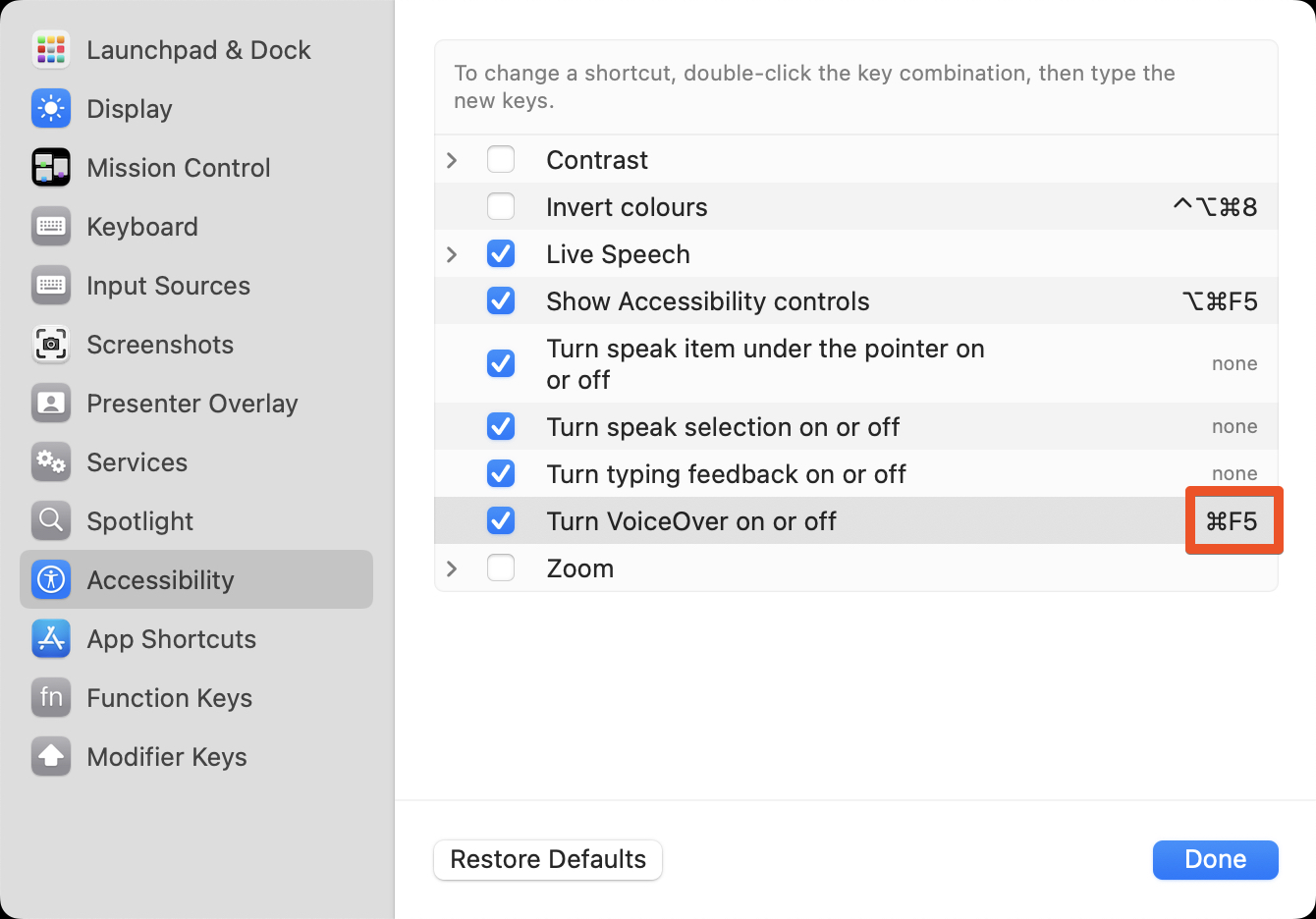
VoiceOver Shortcut can be remapped in System Settings > Keyboard > Keyboard Shortcuts > Accessibility:
With Touch ID
| Shortcut | Action |
|---|---|
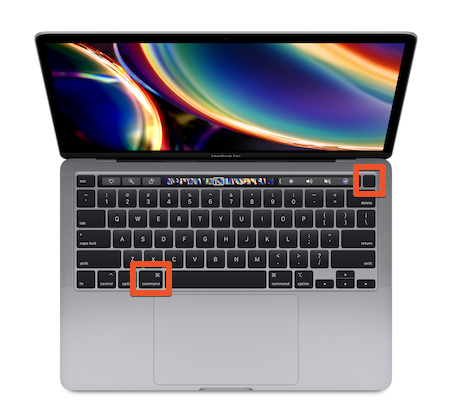
Command + Touch ID Button (tripple click) |
VoiceOver on/off with a keyboard shortcut on Macbook Pro with a touch bar. |
VoiceOver Key
VoiceOver Modifier is a key combination which is highly used in combinations with other keys to run other VoiceOver commands.
| Shortcut | Action |
|---|---|
Control + Option |
VoiceOver modifier or VO. |
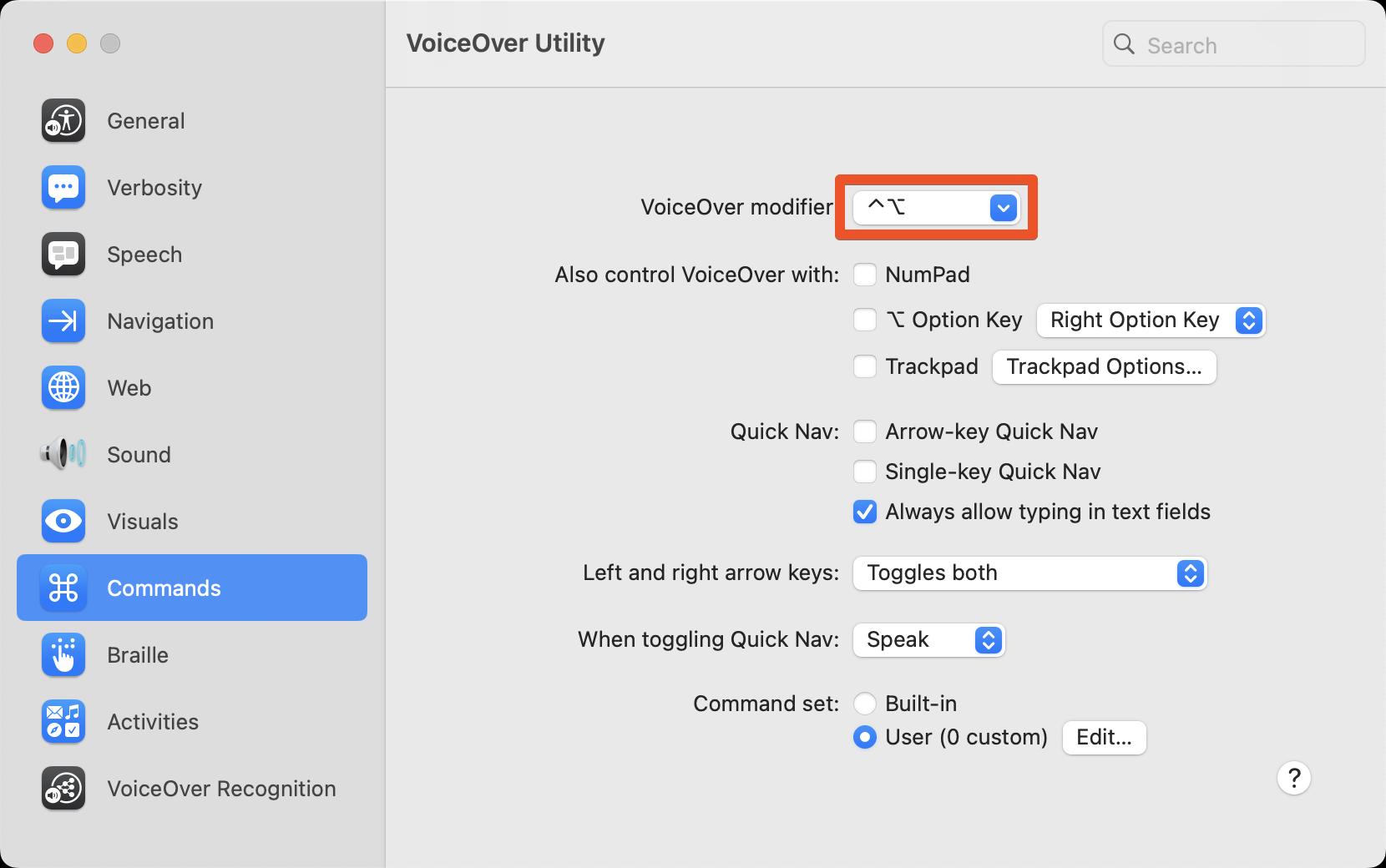
VoiceOver modifier key can be set in VoiceOver Utility > Commands:
Rotor (Navigation Tool)
Rotor is a navigation tool in VoiceOver designed for easy navigation through groups of elements, such as headings, links, images, etc.
| Shortcut | Action |
|---|---|
VO + U |
Open Rotor. |
Arrow Right, Arrow Left (while Rotor is opened) |
Navigate through element groups. |
Esc (while Rotor is opened) |
Close Rotor. |
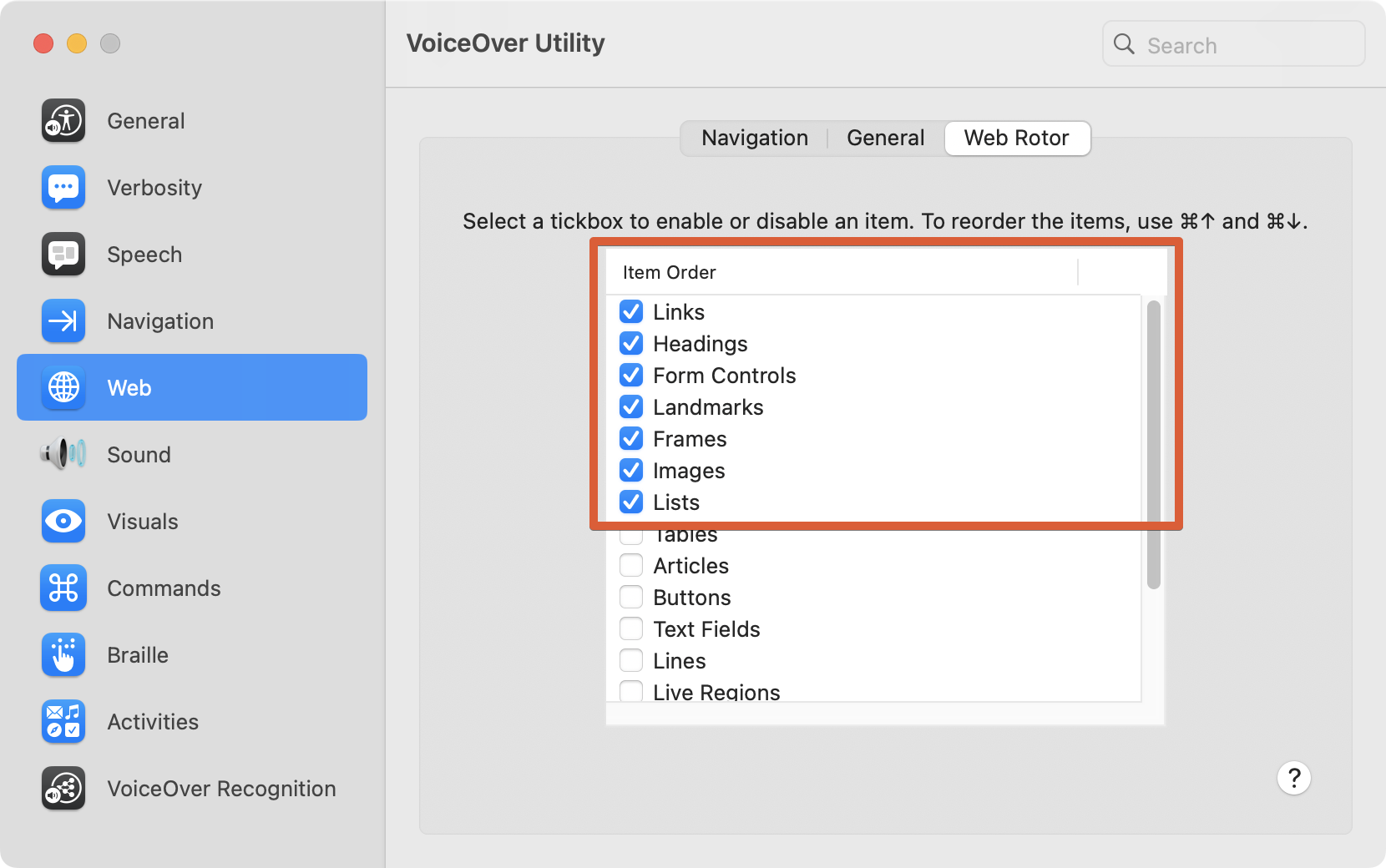
Element groups which appear in the Rotor can be set in the VoiceOver Utility > Web > Web Rotor:
Headings Navigation
| Shortcut | Action |
|---|---|
VO + Command + H |
Find the next heading. |
VO + Command + H + Shift |
Find the previous heading. |
VO + U (Rotor) |
Navigate through headings with Rotor. |
Tab Navigation
Tab key allows keyboard and screen reader users to navigate through interactive elements (links, buttons, form controls, etc.) on the page.
| Shortcut | Action |
|---|---|
Tab |
Find the next interactive element. |
Tab + Shift |
Find the previous interactive element. |
Landmarks Navigation
If properly developed, landmarks are a very convenient way for screen reader users to bypass large content blocks.
| Shortcut | Action |
|---|---|
VO + U (Rotor) |
Navigate through landmarks with Rotor. |
Images Navigation
| Shortcut | Action |
|---|---|
VO + Command + G |
Find the next image. |
VO + Command + G + Shift |
Find the previous image. |
VO + U (Rotor) |
Navigate through images with Rotor (images may not be checked by default in the Rotor settings). |
Items Navigation
| Shortcut | Action |
|---|---|
VO + Arrow Right |
Read next item. |
VO + Arrow Left |
Read previous item. |
Practice
You can practice your screen reader skills on a Practice Page.